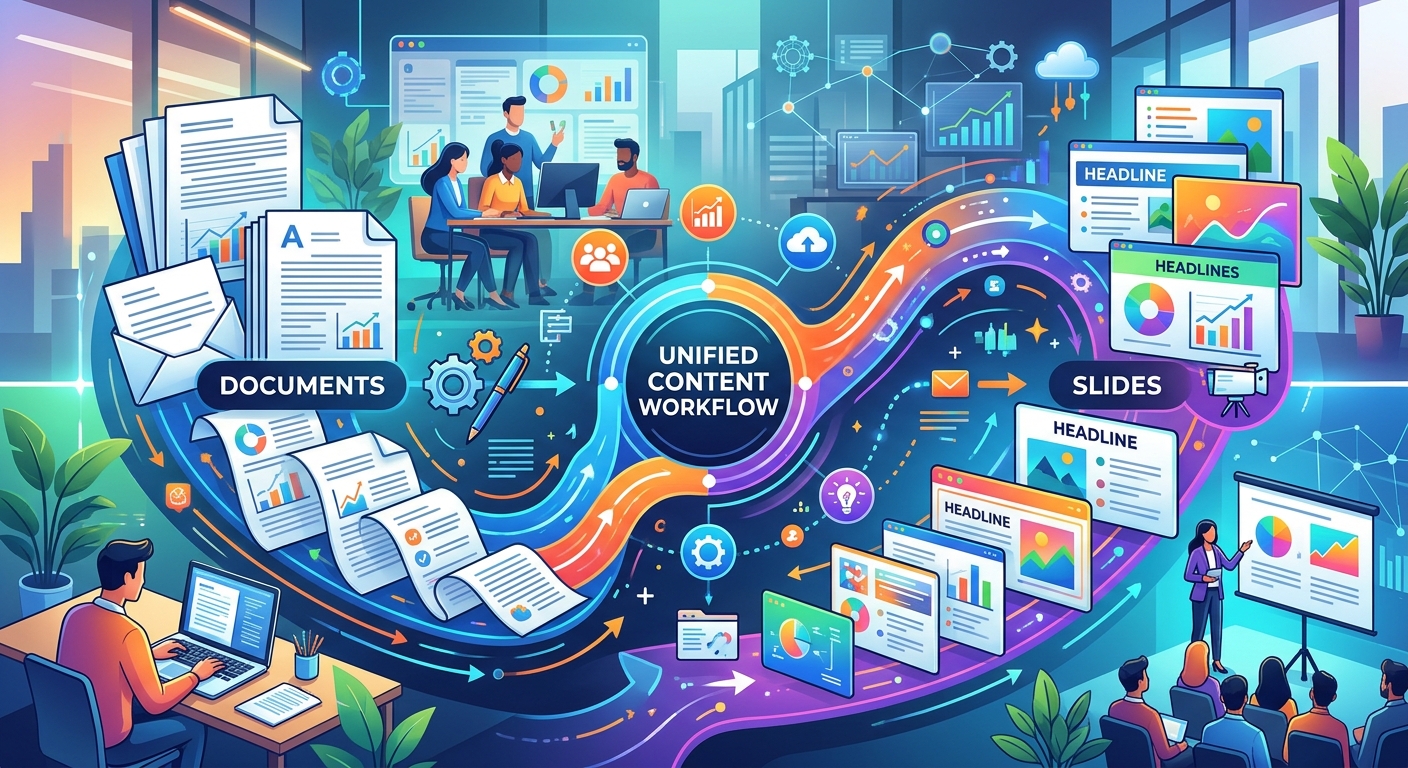
Your report says one thing. Your slides show an older figure. The PDF you emailed has a broken heading, and nobody knows which file contains the approved changes. These problems often start with a simple habit: treating documents and presentations as separate projects. A shared workflow keeps the facts connected while giving each format a clear job. You can write once, adapt with care, and check what your audience will actually receive.
Your Workflow at a Glance
- Keep approved facts in one editable source document.
- Adapt the detail for slides instead of copying whole pages.
- Convert copies and preserve the editable originals.
- Review privacy before uploading any file.
- Check exported files before sharing or archiving.
Give Documents and Slides Different Jobs
A document carries detail. It gives readers space to examine evidence, follow instructions, and return to specific points. A report might explain how a budget was calculated. A proposal might record assumptions, responsibilities, and delivery dates.
Slides guide attention during a talk or provide a brief visual overview. They need fewer words and a clearer sequence. A slide about that budget might show the total, its main components, and the decision you need from the audience.
These files belong in one workflow because they share facts. They still need different writing. Pasting a report paragraph onto a slide usually creates small text and crowded layouts. Cutting the report down to slide captions can remove context that readers need.
Start by deciding what each audience must do. A manager reviewing a proposal alone needs enough detail to judge it. A group attending a ten-minute briefing needs a clear path through the decision. Build both versions from the same approved information.
Build an Editable Source Before Designing Slides
Choose one document as your working source. It can hold the main explanation, confirmed figures, references, and notes about unresolved questions. Use clear headings so you can find and update each topic without searching through scattered drafts.
Separate confirmed facts from working assumptions. For example, label a projected delivery date as a projection until someone approves it. That small distinction prevents a tentative detail from becoming a firm promise in a presentation.
Record the date attached to changing figures. A sales total without a reporting period can become misleading when reused. Keep units visible too. A chart labelled only “Revenue” leaves readers guessing whether values represent pounds, dollars, thousands, or millions.
Once the document is ready, create a slide outline from its headings. Give each slide one main message. Move supporting detail into speaker notes or keep it in the companion document. This makes future revisions easier because you know where the full explanation lives.
Choose Formats According to the Next Task
File conversion works best when you know why you are doing it. A colleague who must rewrite a paragraph needs an editable document. A client who needs a stable reading copy may be better served by a checked PDF. A presenter who must change the running order needs an editable slide file.
The following comparison helps you choose the handoff format without losing track of your working files.
Which File Fits Each Handoff?
| Next Task | Useful Format | What to Check |
|---|---|---|
| Review and rewrite detailed content | Editable Word document | Comments, tracked changes, and application compatibility |
| Read an approved report | Page breaks, selectable text, links, and reading order | |
| Edit or deliver a presentation | Editable presentation file | Fonts, charts, media, notes, and slide dimensions |
| Share static presentation pages | PDF exported from the slides | Slide order, clipping, and information previously revealed through animation |
A PDF provides a fixed page layout, but it does not guarantee that the conversion preserved every element correctly. It also does not automatically prevent editing. Treat format choice and access control as separate decisions.
Place Browser Conversion at a Clear Handoff Point
A free browser-based service fits naturally between creating a file and handing it to someone else. You might finish a presentation, receive a request for another format, and need a conversion option without installing an application.
At that point, a presentation file converter can fit into the workflow. Check its current supported input and output formats before uploading. Use a copy of the presentation, then inspect the downloaded result before treating it as ready to share.
Keep the document and slide steps connected. If your report becomes a PDF and your presentation also becomes a PDF, compare their shared facts after both conversions. Matching filenames cannot tell you whether both files contain the same budget or deadline.
Avoid unnecessary conversion chains. Moving an editable file through several formats can introduce new layout changes at each step. Whenever possible, generate each delivery copy directly from its editable source. If something needs fixing, return to that source and export again.
Check Privacy Before a File Leaves Your Device
Before using an online converter, consider what the file contains and what you are allowed to upload. A public event presentation has different requirements from a contract containing signatures, home addresses, or confidential pricing.
Read the service’s current privacy information and any rules set by your employer or school. Look for explanations of file storage, retention, deletion, and access. A free service still needs to meet your requirements for the material you plan to process.
Review the whole file, including content that is easy to miss.
- Check comments and tracked changes for internal discussions.
- Read speaker notes and inspect hidden slides.
- Review document properties for personal or client information.
- Check embedded spreadsheets and attachments for extra data.
- Remove content that the recipient does not need.
Make these changes in a sharing copy when you need to preserve the original review history. If upload permission is unclear, use an approved local export method or ask the person responsible for the information before proceeding.
Follow a Repeatable Conversion and Review Sequence
A small routine prevents most avoidable handoff problems. It also makes the work easier to repeat when someone requests a change shortly before a meeting.
- Approve the shared facts. Confirm names, dates, amounts, and decisions in the source document.
- Update the presentation. Carry those facts into slide text, charts, captions, and speaker notes.
- Save the editable originals. Keep a clearly named version before making delivery copies.
- Review upload suitability. Check file contents, permissions, and the conversion service’s current requirements.
- Create the required outputs. Export or convert directly from the relevant editable file where possible.
- Open and inspect each result. Compare the output with the source and test the features recipients need.
- Share the checked versions. Archive the delivery copies alongside their matching editable originals.
Use filenames that show purpose and version. Names such as “Project-Brief-v03.docx” and “Project-Brief-v03.pdf” help connect a source with its output. Add a date when it helps distinguish releases. Avoid a growing chain of files named “final” with extra words attached.
Inspect the Output as a Reader Would
Start with a visual pass. In documents, check the first page, headings, page breaks, tables, headers, and footers. Pay attention to pages containing images or long tables. A small font substitution can move a signature block onto another page.
For slides, inspect every page. Look for clipped labels, shifted objects, unreadable footnotes, and charts whose colours are hard to distinguish. If animation previously revealed information in stages, confirm that the static output still communicates the full message.
Then check function. Search for a distinctive phrase in the PDF. Try selecting and copying a sentence. Test useful links. These checks help reveal an output that looks correct but contains image-only text or broken navigation.
Accessibility needs its own attention. Clear headings, meaningful link text, sufficient contrast, and logical reading order help more people use the file. A visual review alone cannot establish that a PDF works with assistive technology.
Finally, open the delivery file in another viewer or on a phone if that matches how people will receive it. Readability on your editing screen does not guarantee comfortable reading on a smaller display.
Preserve Originals for the Next Revision
Keep the editable document, editable presentation, and approved delivery copies in a clearly labelled project folder. Preserve supporting assets that may be needed later, including original images and chart data.
A PDF is useful as a record of what you shared. It is usually a less convenient starting point for substantial revisions. Converting it back into an editable format may require cleanup, especially around columns, tables, or text boxes.
For formal long-term preservation, check whether your organisation requires a particular archival format or validation process. A filename ending in “.pdf” does not establish compliance with an archival standard. Keep an independent backup according to your normal storage policy.
Make the Next Handoff Easier
Documents and slides work better when they share a dependable source and a clear review routine. Write the full explanation once. Adapt it for the presentation. Create delivery copies at the point where the audience’s needs change.
Browser conversion can make that handoff convenient, provided the file is suitable for upload and the output passes your checks. Preserve the originals, verify shared facts, and inspect what you send. The result is a set of files that tells one consistent story, with enough flexibility for the next revision.